
You downloaded an app called IPTV Smarters Pro and now you are staring at a blank screen wondering what happens next.
That confusion is completely normal. Most people land on IPTV Smarters Pro expecting it to work like a regular streaming app, plug and play, channels already loaded.
It does not work that way, and once you understand why, the whole setup takes about five minutes instead of an hour of frustrated tapping.
This guide walks you through downloading IPTV Smarters Pro properly, connecting it to a provider, testing a trial the right way, and avoiding the mistakes that leave most new users stuck on a loading spinner.
What IPTV Smarters Pro Actually Does
IPTV Smarters Pro is a player, not a content source. That one sentence solves half the confusion people have.
Picture it like a television set. A TV does nothing on its own until a signal feeds into it.
IPTV Smarters Pro works the same way. You still need a subscription or playlist link from a separate provider before anything plays.
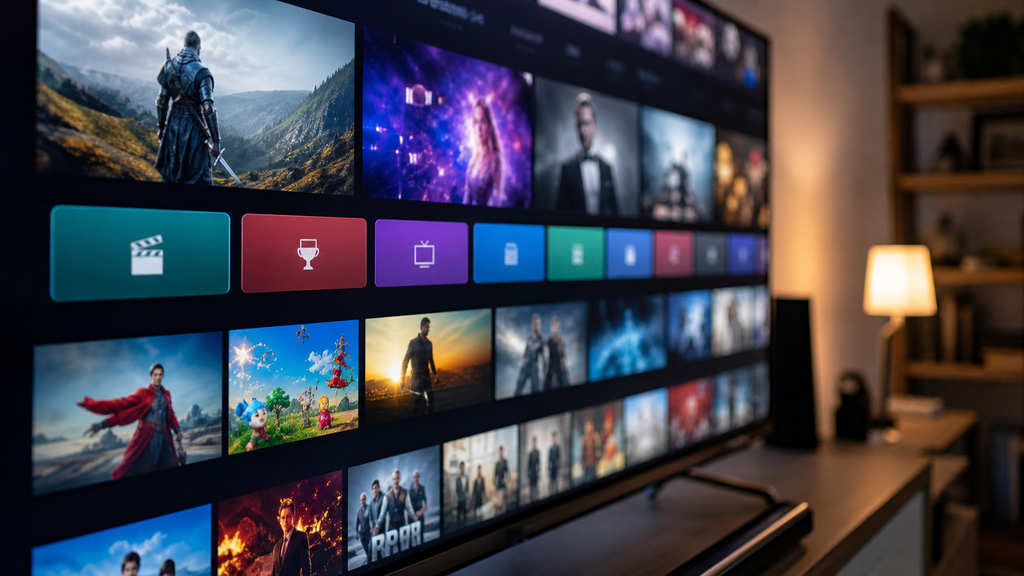
Once that link is connected, IPTV Smarters Pro organizes everything into one clean interface, live channels, movies, series, and a program guide, all in one place.
Why This App Became So Popular in 2026
IPTV Smarters Pro runs across nearly every device type, phones, tablets, Firestick, Android TV boxes, Windows, and Mac.
That cross device flexibility is rare. Most streaming apps lock you into one ecosystem, while IPTV Smarters Pro lets you carry the exact same setup from your TV to your phone without starting over.
Industry surveys on cord cutting trends show streaming device ownership climbing year over year, with more households running at least one dedicated streaming box alongside a smart TV. Apps like IPTV Smarters Pro sit right in the middle of that shift.
Step One: Download It From the Right Place
This is where a lot of setup guides send people the wrong direction, straight toward random APK files instead of official stores.
Android phones and tablets: open the Google Play Store and search IPTV Smarters Pro directly.
Amazon Firestick and Fire TV: search for it inside the Amazon Appstore on the device itself, not through a browser.
iPhone and iPad: available through the Apple App Store under the same name.
Windows or Mac: download only from the official smarterstvplayer.com site. Browser mirror links and forum downloads are the easiest way to end up with something you did not ask for buried inside the installer.
Step Two: Open the App and Add a Playlist
Once IPTV Smarters Pro is installed, open it and look for the option to add a new user.
You will see two connection methods. The first is Xtream Codes API, which needs a server URL, a username, and a password.
The second is an M3U URL, a single link that contains the entire playlist in one string.
Enter whichever format your provider sent you, then tap add user. IPTV Smarters Pro pulls everything automatically within a minute or two.
Step Three: Let the App Sync Everything
Give IPTV Smarters Pro a moment after adding the playlist. It needs to download the channel list, VOD library, and program guide data in the background.
A fast connection usually finishes this sync in under sixty seconds. Slower connections or large playlists can take a few minutes.
If categories look empty right after setup, close the app and reopen it once. That single step fixes more “nothing is loading” complaints than any other troubleshooting tip.
Naming Your Profile Properly
If you plan on testing more than one provider, name each profile clearly inside IPTV Smarters Pro.
Something simple works best, provider name plus the date you added it. This matters more than people expect once you have three or four trials running at once and cannot remember which is which.
IPTV Smarters Pro supports multiple saved profiles, so you never have to delete one playlist just to test another.
The Right Way to Run an IPTV Trial
Never buy a full annual plan before testing. A proper trial tells you everything the sales page will not.
Run the trial for at least 24 hours inside IPTV Smarters Pro, not just a quick five minute glance.
Test playback during the evening when household internet usage peaks across most neighborhoods. That is when weak providers show their real buffering problems.
Check whether the electronic program guide actually populates with correct show times, or sits blank like far too many cheap trials do.
Test on the actual device you plan to use daily, not a spare tablet sitting in a drawer. Performance varies more by device than people assume.
A Quick Visual for What a Good Trial Looks Like
Picture a simple checklist graphic split into two columns. One side labeled good trial signs, the other labeled warning signs.
Good trial signs include smooth playback at peak hours, a populated EPG, responsive support, and stable server addresses that do not change mid test.
Warning signs include constant buffering, blank program guides, support that never replies, and sudden channel drops within the first day of testing.
That single comparison tells you more in ten seconds than most review sites manage in ten paragraphs.
Common IPTV Smarters Pro Problems and How to Fix Them
Buffering during busy hours usually points to server overload rather than your own internet speed. Many providers offer backup server addresses specifically for this reason, so check settings before blaming your connection.
Blank EPG data almost always means the provider has not refreshed their guide recently. Forcing a manual EPG refresh inside IPTV Smarters Pro settings usually solves it within a few minutes.
App crashing on open, especially on older Firestick models, is typically a storage or cache issue. Clearing the app cache from device settings resolves this in most cases without needing a full reinstall.
Channels disappearing after a few days often means the provider updated their playlist link. Re-entering the fresh Xtream Codes or M3U details inside IPTV Smarters Pro brings everything back.
Before and After: A Rough Setup vs a Clean One
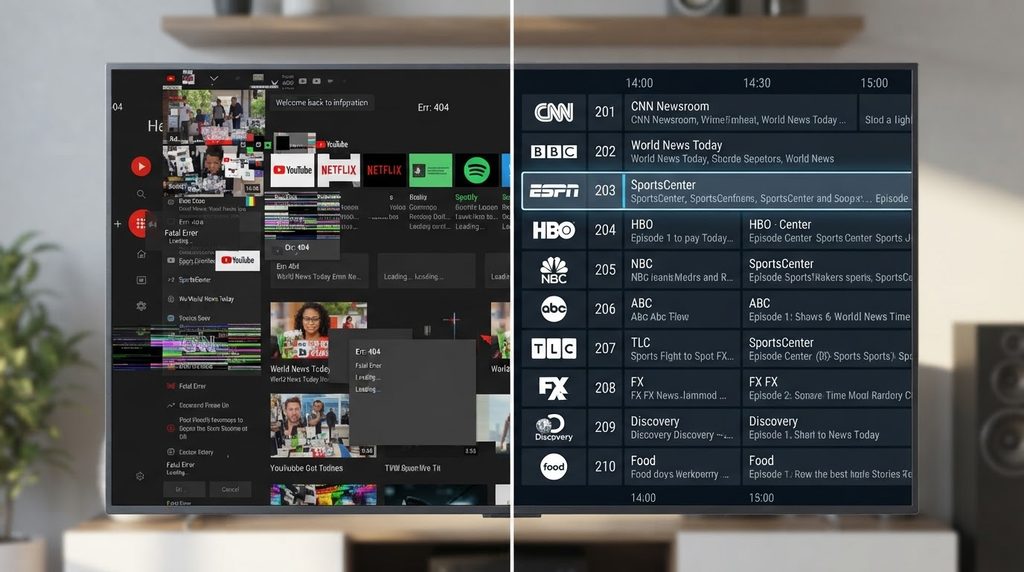
Before getting things right, a typical new user has three half broken playlists loaded into IPTV Smarters Pro, categories out of order, and a guide that shows nothing but gray boxes.
After a proper setup, the same screen looks completely different. One reliable playlist, categories sorted logically, a working guide, and playback that holds steady even during peak hours.
That transformation almost always comes down to picking one dependable provider instead of juggling five unreliable trial links at once.
Device Specific Notes Worth Knowing
On Firestick, sideloading through the Downloader app is sometimes necessary if IPTV Smarters Pro is not listed directly in your region’s Amazon Appstore. Only use the official shortcode provided on the developer’s real site for this.
On Android TV boxes, performance depends heavily on available RAM. Devices with less than 2GB often struggle regardless of how good the IPTV provider is.
On Windows and Mac, a wired connection instead of WiFi noticeably reduces buffering, especially for anyone streaming in 4K through IPTV Smarters Pro.
What to Check Before Paying for a Full Plan
Ask whether the trial length was at least 24 hours. Anything shorter does not give you enough data to judge reliability.
Check if simultaneous connections are supported, since many households run IPTV Smarters Pro on more than one screen at once.
Confirm there is a clear refund policy before committing to a longer package.
Avoid any provider advertising an unusually massive channel count for an unusually low price. That pattern almost always signals unlicensed content sourcing, which creates real legal exposure depending on where you live.
A Note on Staying on the Right Side of Things
IPTV Smarters Pro the app is completely legal. It is simply a media player.
The legal question always comes down to where your content is sourced from. Licensed streaming bundles and authorized IPTV resellers operate within copyright law. Unauthorized aggregators reselling broadcast channels without distribution rights do not.
Regulators across several regions have increased enforcement around unlicensed IPTV reselling in recent years. In Saudi Arabia specifically, the Communications, Space and Technology Commission publishes current guidance on licensed broadcast and streaming distribution, and it is worth a quick read before signing up with any provider operating in or serving the Kingdom.
Sticking with properly licensed sources protects you from service interruptions, account bans, and the legal gray area that unlicensed IPTV packages sit in.
Five Habits That Make IPTV Smarters Pro Worth Using
- Keep the app updated. Older versions occasionally lose compatibility with newer provider server formats.
- Save backup server links your provider gives you, since switching during an outage takes seconds if you already have the alternate address handy.
- Restart your router occasionally. IPTV Smarters Pro performance often improves simply because local network congestion clears out.
- Avoid stacking too many profiles you no longer use. A cluttered playlist list inside IPTV Smarters Pro makes troubleshooting harder than it needs to be.
- Test new providers during peak hours, not at 3am when every service looks flawless regardless of quality.
Putting It All Together
IPTV Smarters Pro earns its popularity honestly. It is flexible, works across nearly every device, and organizes a messy streaming world into one clean screen.
The setup itself takes minutes once you know the two things that trip up most beginners, downloading from the right source and understanding that a separate provider supplies the actual content.
Run every trial properly before paying for anything. Twenty four hours of real world testing during busy evening hours tells you more than any sales page ever will.
Get those two habits right, download from official stores and test before committing, and IPTV Smarters Pro becomes exactly what it is designed to be, a dependable way to watch the content you already have the right to access.